
POI Hide UnHide Rows Columns Java Example
In this tutorial, we will discuss how to hide / unhide rows / columns in an Excel worksheet using Apache POI, with suitable Java Examples.We will cover the following topics in this example:
- Hide Single Row of Data
- Hide Multiple rows in a worksheet
- Hide rows with setZeroHeight method
- Unhide rows (single / multiple) from a worksheet
- Hide single / multiple columns
- Unhide colums in a worksheet
- Hide worksheets using Apache POI
A step by step guide will be provided where possible for all the cases above. The examples in this post are applicable for both new workbooks / modification of existing workbooks - you can use them where appropriate.A complete Java Program which you can use to practice hide / unhide snippets from each section, is provided at the end;
Excel POI Hide Single Row Example
To hide a single row in your Excel workbook, you can invoke the
setHidden method in CTRow class. You get access to CTRow via getCTRow method in XSSFRow class. You can do this as you create the rows in the worksheet. Alternatively, you can loop through a worksheet by reading it and hide rows that are not required on the same approach (Hide rows on existing workbooks). The key Java code segment is shown below: import org.openxmlformats.schemas.spreadsheetml.x2006.main.*;
....
...
...
/* Row #1 */
XSSFRow row2 = sheet.createRow(1);
XSSFCell cell21 = row2.createCell(0);
cell21.setCellValue("Matt");
XSSFCell cell22 = row2.createCell(1);
cell22.setCellValue("English");
XSSFCell cell23 = row2.createCell(2);
cell23.setCellValue(54);
/* Hide Row using getCTRow and setHidden Method */
row2.getCTRow().setHidden(true);
Excel POI Hide Multiple Rows Example
To hide multiple rows in a worksheet, you have to invoke
setHidden method against multiple rows by iteratively looping through them on by one. You follow the approach to hide single rows against a set of rows inside a loop. Inside the loop, you can have the condition to be checked for hiding – if required. The Java code to hide multiple rows is provided below: import org.openxmlformats.schemas.spreadsheetml.x2006.main.*;
..
..
/* Hide Multiple Rows Iteratively*/
/* Add conditions inside this loop to conditionally hide rows */
XSSFRow r1;
for(Row r : sheet)
{
r1=(XSSFRow) r;
r1.getCTRow().setHidden(true);
}
POI Hide Rows - setZeroHeight Method
You can also hide rows (set them invisible) inside a worksheet by using
setZeroHeight method in XSSFRow class. This meets the same outcome and makes the rows invisible in the worksheet. You can also follow this iteratively across rows and columns and hide multiple rows by this approach. The Java Code segment is shown below: /* Row #2 */
XSSFRow row3 = sheet.createRow(2);
XSSFCell cell31 = row3.createCell(0);
cell31.setCellValue("Pitt");
XSSFCell cell32 = row3.createCell(1);
cell32.setCellValue("English");
XSSFCell cell33 = row3.createCell(2);
cell33.setCellValue(90);
/* Hide Rows using setZeroHeight Method */
row3.setZeroHeight(true);
Code to hide multiple rows by
setZeroHeight method: /* Hide Multiple Rows using setZeroHeight*/
/* Add conditions if required */
XSSFRow r1;
for(Row r : sheet)
{
r1=(XSSFRow) r;
r1.setZeroHeight(true);
}
You should not use
setHeight method and pass a value of 0 to it, as it does not hide the rows but rather shrinks the height to near zero.Excel POI Unhide Rows Java Example
To unhide rows from a worksheet, you can first use
getZeroHeight method to check if the row is hidden. If the row is hidden, then you can use setZeroHeight method and send a value of False to it to unhide a row. You can repeat the same process across all the rows that are hidden. Alternatively, you can fetch a single row using getRow method in XSSFSheet and invoke setZeroHeight against the row. You can also use setHidden method and pass false to unhide a row. Java examples are as under: /* Unhide Single Row - Hides second row, 0 based*/
sheet.getRow(1).setZeroHeight(false);
...
...
/* Unhide multiple Rows - over a loop */
XSSFRow r1;
for(Row r : sheet)
{
r1=(XSSFRow) r;
r1.setZeroHeight(false);//unhide
}
..
..
/* Use setHidden method to unhide */
sheet.getRow(2).getCTRow().setHidden(false);
Excel POI Hide Column - Java example
Off to columns now, you need to follow a slightly different method to hide columns in a worksheet. The code to hide a single column in Excel using POI, uses
setColumnHidden method and passes column index and hidden state to it. A code snippet is shown below: /* Hide column in worksheet */
/* Pass column ID (0 based) and set True to Hide */
sheet.setColumnHidden(1,true);
Hide Multiple Columns using Apache POI
You can invoke
setColumnHidden method multiple times, to hide multiple columns in a worksheet. Interestingly, POI implementation adds one line for every column that is hidden to the worksheet XML file as captured below:<cols>
<col min="2" max="2" hidden="true" width="8.0" customWidth="false"/>
<col min="3" max="3" hidden="true" width="8.0" customWidth="false"/>
</cols>
However, Microsoft Office implements this differently by setting
min=2 and max=3 and just having a single col tag as shown below:<col min="2" max="3" hidden="true" width="8.0" customWidth="false"/>
You can just follow what POI does here, however it is good to know that such an approach exists, that you can take advantage of using OOXML if required. However, if you use
max based approach, your columns will have to be consecutive to each other.You can also try hiding a column by using
setColumnWidth method and pass 0 as width to a column, but this does not set the hidden parameter against a column to true. It only makes the width to 0 and cannot be unhidden in Excel like a standard hidden column. If you want to make the width of a column to zero, you can follow the code as shown below: /* Set column width to 0 to make a column invisible */
/* Does not hide the column */
sheet.setColumnWidth(1,0);
Excel POI Unhide Columns - Java Example
To unhide columns from a worksheet, you can use the same
setColumnHidden method and pass a value of false against a column ID. If you want to check a column is hidden or not, you can use isColumnHidden method to do so. That way, you can unhide a column only if it is hidden. (POI does not throw an error if you accidentally hide a column that is hidden already or vice versa). The Java code to unhide columns from a worksheet is shown below: /* Unhide column in a worksheet */
/* Set parameter to false in setColumnHidden to unhide */
sheet.setColumnHidden(1,false);
Hide worksheets using Apache POI
You can use the method
setSheetHidden to hide a worksheet using Apache POI. This method is a part of XSSFWorkbook class. Make sure you have more than one sheet in the workbook when you hide one of the sheets. Otherwise, you will get an error when this sheet (No compile / Run time errors !) is opened in Microsoft Excel. The famous errorExcel found unreadable content in …
The Java code snippet to hide a worksheet in a workbook is shown below:
                /* Hide Worksheet - Apache POI */
                /* Pass Sheet ID as Zero Based */
                new_workbook.setSheetHidden(0,true);
To try the examples in this post, you can use the AutoFilter example and replace the code where required.
Check out all our Apache POI Tutorials.
Check out all our Apache POI Tutorials.
Hope this tutorial helped you to solve your hide / unhide problems in rows / columns using Apache POI and Java. If you are stuck, you can post a comment on the blog so we can help.
Apache POI Excel Gradient Fill Example
In this tutorial, we discuss how to set Gradient Fill on Excel Cells using Apache POI / Java with example programs. Filling cell background with gradient color pattern is not available in POI at the time of writing, so we have to extend POI with the support of OOXML. This tutorial is applicable for XLSX formats only and includes the following sections:
- Gradient Fill – Basic Example
- Gradient Fill – Shading Styles
- Horizontal
- Vertical
- Diagonal Up
- Diagonal Down
- From Corner
- From Center
- Gradient Fill – Theme Colours / Standard Colors
Excel Gradient Fill - POI – Basic Example
List of steps involved in creating a gradient fill is captured below:
 |
| Excel Gradient Fill - POI - List of Steps |
Create Workbook / Cell Data:
In this step, we read an existing workbook where you want to apply a Gradient Fill. We also create a Cell inside a worksheet here, on which we will create a gradient background. Java code for this step is provided below:
                /* Read Workbook and Access Worksheet */
                FileInputStream input_document = new FileInputStream(new File("c2.xlsx"));
                XSSFWorkbook my_xlsx_workbook = new XSSFWorkbook(input_document);
                XSSFSheet sheet = my_xlsx_workbook.getSheetAt(0);
                Row row = sheet.createRow(0); //create Row
                XSSFCell cell1 = (XSSFCell) row.createCell(0);//Create Cell for Gradient Fill
                cell1.setCellValue("Gradient Fill"); //Cell Data
Create Gradient Fill:
We can now create a gradient fill with
CTFill object. You create a new instance of CTFill and then use addNewGradientFill method to create CTGradientFill object. From here, you can define the type of Gradient and set gradient parameters (more on this later). Finally, you can add the colors for your gradient background using CTGradientStop and CTColor object. You can select two colors for your gradient combination, and pass RGBA values of your gradient combination into it./* Get the Style Sheet - We have to add Gradient Fill here */
CTStylesheet wbStyle=my_xlsx_workbook.getStylesSource().getCTStylesheet();
long aLong = wbStyle.getFills().getCount();
/* Current Fill Count Value */
int anInt = new BigDecimal(aLong).intValueExact();
/* Add Fills with Gradient Information*/
CTFill myGradientFill= CTFill.Factory.newInstance(); ///* Create a Gradient fill
CTGradientFill gFill=myGradientFill.addNewGradientFill(); ///* Set Type, left, right, top and bottom values
Double d=new Double("0.5");
gFill.setType(STGradientType.PATH);
gFill.setLeft(d);
gFill.setRight(d);
gFill.setTop(d);
gFill.setBottom(d);
/* Add Stop Position */
CTGradientStop pos0=gFill.addNewStop();
pos0.setPosition(new Double("0"));
/* Set Color 1 */
CTColor stopPositionColor=pos0.addNewColor();
stopPositionColor.setRgb(javax.xml.bind.DatatypeConverter.parseHexBinary("FFFF0000"));
/* Add Stop Position */
CTGradientStop pos1=gFill.addNewStop();
pos1.setPosition(new Double("1"));
/* Set Color 2 */
CTColor stopPositionColor1=pos1.addNewColor();
stopPositionColor1.setRgb(javax.xml.bind.DatatypeConverter.parseHexBinary("FFCCECFF"));
Modify Style Sheet with Gradient Fill
You have to update the style sheet with the gradient fill you created in the earlier step. You first create
XSSFCellFill object, with the gradient information created earlier. Once this done, you attach XSSFCellFill object to the workbook style sheet using putFill method as shown below:XSSFCellFill myCellFill= new XSSFCellFill(myGradientFill);
my_xlsx_workbook.getStylesSource().putFill(myCellFill);
Attach Fill to CTXf
In this step, you create a
CTXf object and attach the gradient fill you created in step#2 as an attribute to this object. You also set other attributes for this object, and include this into the stylesheet using putCellXf method as shown below:CTXf addCTX=CTXf.Factory.newInstance();
addCTX.setNumFmtId(0L);
addCTX.setFontId(0L);
addCTX.setFillId((long)anInt);
addCTX.setBorderId(0L);
addCTX.setXfId(0L);
addCTX.setApplyFill(true);
my_xlsx_workbook.getStylesSource().putCellXf(addCTX);
Apply Gradient Fill to Cell
You are now ready to apply the Gradient Fill to Cell. You use the method
setS in CTCell to pass the reference to CTXf you created in the earlier step. Note that the value you pass to setS should be one less than the value you set in setFilld code. Otherwise, your gradient will not work. (And I don’t know why). This step applies the gradient background to your Cell.cell1.getCTCell().setS(1L);
Update Workbook with Gradient Style
Finally, you can now write the output to a file and see your gradient background in action. The Java code for this bit is provided below, and the gradient background created by the code is also shown after.
/* Write changes to the workbook */
FileOutputStream out = new FileOutputStream(new File("c22.xlsx"));
my_xlsx_workbook.write(out);
out.close();
 |
| Gradient Fill Excel - Java Output |
Download Full Code for this Example.
Gradient Fill – Shading Styles
You can apply different type of gradient fills , like what Excel has to offer as shown below, in POI.
 |
| Shading Styles - Gradient Fill - POI Example |
Gradient – Horizontal Shading
In horizontal shading option, you can get three variants of the gradient fill to your original setup. Java Code change required is provided below:
Horizontal Shading Gradient - Variant #1
You have set the degree to
90 in CTGradientFill object. Rest of the code is intact as shown below:/* Gradient with horizontal shading - Just set degree to 90 */
CTFill myGradientFill= CTFill.Factory.newInstance(); ///* Create a Gradient fill
CTGradientFill gFill=myGradientFill.addNewGradientFill(); ///* Set Type, left, right, top and bottom values
Double d=new Double("90");
gFill.setDegree(d);
/* Add Stop Position */
CTGradientStop pos0=gFill.addNewStop();
pos0.setPosition(new Double("0"));
/* Set Color 1 */
CTColor stopPositionColor=pos0.addNewColor();
stopPositionColor.setRgb(javax.xml.bind.DatatypeConverter.parseHexBinary("FFA50021"));
/* Add Stop Position */
CTGradientStop pos1=gFill.addNewStop();
pos1.setPosition(new Double("1"));
/* Set Color 2 */
CTColor stopPositionColor1=pos1.addNewColor();
stopPositionColor1.setRgb(javax.xml.bind.DatatypeConverter.parseHexBinary("FFFFFFFF"));
Horizontal Shading Gradient - Variant #2
Same code as Variant #1, just change the degree to 270 instead of 90.
Horizontal Shading Gradient - Variant #3
This one is tricky. You have to make multiple changes to your POI code to get this done.
b) Add three stop positions, 0 0.5 and 1. The color on stop positions 0 and 1 should be same as shown below:
The Java Code is provided below
/* Gradient with horizontal shading - Multiple Stop Positions*/
CTFill myGradientFill= CTFill.Factory.newInstance(); ///* Create a Gradient fill
CTGradientFill gFill=myGradientFill.addNewGradientFill(); ///* Set Type, left, right, top and bottom values
Double d=new Double("90");
gFill.setDegree(d);
/* Add Stop Position */
CTGradientStop pos0=gFill.addNewStop();
pos0.setPosition(new Double("0"));
/* Set Color 1 */
CTColor stopPositionColor=pos0.addNewColor();
stopPositionColor.setRgb(javax.xml.bind.DatatypeConverter.parseHexBinary("FFA50021"));
/* Add Stop Position */
CTGradientStop pos1=gFill.addNewStop();
pos1.setPosition(new Double("0.5"));
/* Set Color 2 */
CTColor stopPositionColor1=pos1.addNewColor();
stopPositionColor1.setRgb(javax.xml.bind.DatatypeConverter.parseHexBinary("FFFFFFFF"));
/* Add Stop Position */
CTGradientStop pos2=gFill.addNewStop();
pos2.setPosition(new Double("1"));
/* Set Color 2 */
CTColor stopPositionColor2=pos2.addNewColor();
stopPositionColor2.setRgb(javax.xml.bind.DatatypeConverter.parseHexBinary("FFA50021"));
The output across all the variants of this gradient fill is shown below:
 |
| POI - Gradient Fill - Horizontal Shading - Example |
Gradient – Vertical Shading
Similar to horizontal shading, you get three variants in vertical shading also. You have to make minor modifications to your gradient fill from the horizontal shading option to get these variants. These are shown below:
Vertical Shading Gradient - Variant #1
Just remove the
setDegree method and you are done. You get a vertical shading, Java code is provided below:/* Gradient with Vertical shading */
CTFill myGradientFill= CTFill.Factory.newInstance(); ///* Create a Gradient fill
CTGradientFill gFill=myGradientFill.addNewGradientFill();
/* Add Stop Position */
CTGradientStop pos0=gFill.addNewStop();
pos0.setPosition(new Double("0"));
/* Set Color 1 */
CTColor stopPositionColor=pos0.addNewColor();
stopPositionColor.setRgb(javax.xml.bind.DatatypeConverter.parseHexBinary("FFA50021"));
/* Add Stop Position */
CTGradientStop pos1=gFill.addNewStop();
pos1.setPosition(new Double("0.5"));
/* Set Color 2 */
CTColor stopPositionColor1=pos1.addNewColor();
stopPositionColor1.setRgb(javax.xml.bind.DatatypeConverter.parseHexBinary("FFFFFFFF"));
Vertical Shading Gradient - Variant #2
Same as the horizontal option, just set degrees to 180 in this case.
Vertical Shading Gradient - Variant #3
Add multiple stop points as in the horizontal option, and do not set the degree option.
The output in all these cases is shown below. You can see three different vertical gradient fills from the screenshot:
 |
| POI Gradient Fill Vertical Shading Example |
Gradient – Diagonal Up Shading
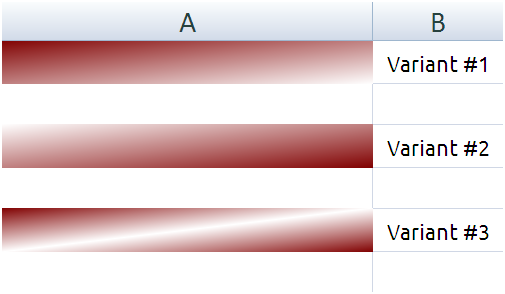
This section talks about implementing gradient fills with a diagonal fill approach in POI – and there are three variants in this approach as well. You have to follow the example given in the horizontal shading section with the changes listed below:
Variant #1
Set degree to 45.
Variant #2
Set degree to 225
Variant #3
Set Degree to 45 and add multiple stop points.
The output in all these cases is shown below:
 |
| POI Gradient Fill - Diagonal Up- Example Output |
Gradient – Diagonal Down Shading
In diagonal down shading, you have to make small changes to your horizontal shading option as provided below to get the desired gradient fill with POI. These are listed below:
Variant #1
Set degree to 135.
Variant #2
Set degree to 315
Variant #3
Set Degree to 135 and add multiple stop points.
The output in all these cases is shown below:
 |
| POI Gradient Fill - Diagonal Down - Example Output |
Gradient Fill- From Corner Shading
This is different to other shading options that we saw earlier. It has four variants as well as shown in the screenshot below:
 |
| POI Gradient Fill - From Corner - Example |
Variant#1
set type=path
Variant#2
Set type=path, left=1, right=1
Variant#3
Set type=path, top=1, bottom=1
Variant#4
Set type=path, left=1, right=1, top=1, bottom=1
Gradient Fill – From Center Shading
This is same as our original example. Follow the full code given earlier if you want to implement center shading Gradient fill in Apache POI.
Gradient Fill – Theme Colours / Standard Colors
In all the examples we have provided earlier, we have used standard colors as gradient colors. These are colors with a RGB values. If you have a requirement to use “theme” based colors, you have to modify the original code slightly to get the outcome.
Hope this tutorial has given you plenty of examples for creating gradient color backgrounds to cell with Apache POI. Give a try and post us a comment if you need any help.
Conditional Formatting Color Scales Java POI Example
In this post, we explain how to apply color scales in Conditional Formatting, on your Excel workbooks, with Apache POI / Java Example. A screenshot of color scales in Excel is shown below:
 |
| Conditional Formatting - Color Scales - Java POI Example |
When you apply color scales to your Excel Data, Excel formats your data with min value and max value considered, as shown below:
 |
| Color Scales - Java Example Output |
- Read Color Scale Data Range
- Create Conditional Formatting Rule
- Define Color Scale Values and Colours
- Write Output to Excel Workbook
Read Color Scale Data Range
In this step, we read the worksheet and identify the data range, on which we have to apply Color Scales. As an example, let us take a workbook with 10 rows – range of A1: A10 (see above for sample). We feed this range to a
List object. The Java Code segment is provided below:
                /* Read Workbook and Identify Color Scale Range */
                FileInputStream input_document = new FileInputStream(new File("input.xlsx"));
                XSSFWorkbook my_xlsx_workbook = new XSSFWorkbook(input_document);
                XSSFSheet my_sheet = my_xlsx_workbook.getSheetAt(0);
                List<String> my_range=new ArrayList<String>();
                my_range.add("A1:A10");
Create Conditional Formatting Color Scale Rule
Next, we create an object of type
CTConditionalFormatting using the addNewConditionalFormatting method in CTWorksheet class. You have to attach the data range created earlier to this object using the setSqref method. See below;
                /* Add Conditional Formatting Rule */
                CTConditionalFormatting colorScale= my_sheet.getCTWorksheet().addNewConditionalFormatting();
                colorScale.setSqref(my_range); // Attach Range to conditional formatting set
You will now add a rule of type
colorScale. A rule can be added by using addNewCfRule method. Once created, the method setType is used to set the type to colorScale, and priority is set as 1. CTCfRule myCFRule=colorScale.addNewCfRule(); //create a rule
myCFRule.setType(STCfType.COLOR_SCALE); // set type of rule to Colour Scale
myCFRule.setPriority(1); // rule priority = 1
Define Color Scale Format and Colors
Now, use
addNewColorScale method in CTCfRule class, to create a new color Scale. Once this is done, you can set the parameters of your color Scale rule. These include;
- Minimum Value of the Color Sale range
- Mid Point value as
- Percentile
- Number
- Percent
- Formula
- Maximum Value
- Colours for Minimum, Mid Point and Maximum Value as RGB
You set all these properties via
CTCfvo object, which you can add from CTColorScale object. And, you define your color values using CTColor object. /* Define Color Scale and set Values */
CTColorScale colorScaleDefn=myCFRule.addNewColorScale ();
/* Define MIN Values */
CTCfvo minValue=colorScaleDefn.addNewCfvo();
minValue.setType(STCfvoType.MIN);
minValue.setVal("0");
/* Define MID Values */
CTCfvo midValue=colorScaleDefn.addNewCfvo();
midValue.setType(STCfvoType.PERCENTILE);
midValue.setVal("50");
/* Define MAX Values*/
CTCfvo maxValue=colorScaleDefn.addNewCfvo();
maxValue.setType(STCfvoType.MAX);
maxValue.setVal("0");
/* Add color ranges - min / max / mid */
CTColor lowColor= colorScaleDefn.addNewColor();
CTColor midColor= colorScaleDefn.addNewColor();
CTColor highColor= colorScaleDefn.addNewColor();
lowColor.setRgb(javax.xml.bind.DatatypeConverter.parseHexBinary("FFF8696B"));
midColor.setRgb(javax.xml.bind.DatatypeConverter.parseHexBinary("FFFFEB84"));
highColor.setRgb(javax.xml.bind.DatatypeConverter.parseHexBinary("FF5A8AC6"));
Once this is done, you can write the output to a file and you have successfully implemented a basic Color Scale setup in Java with Apache POI.
Conditional Formatting – Color Scales – Java POI Example
The complete example for inserting color scales with conditional formatting in Apache POI / Java is provided below:
import java.io.*;
import org.apache.poi.ss.usermodel.*;
import org.apache.poi.xssf.usermodel.*;
import org.apache.poi.ss.util.CellRangeAddress;
import org.openxmlformats.schemas.spreadsheetml.x2006.main.*;
import java.util.*;
public class colorScale {
public static void main(String[] args) throws Exception{
/* Read Workbook and Identify Color Scale Range */
FileInputStream input_document = new FileInputStream(new File("input.xlsx"));
XSSFWorkbook my_xlsx_workbook = new XSSFWorkbook(input_document);
XSSFSheet my_sheet = my_xlsx_workbook.getSheetAt(0);
List<String> my_range=new ArrayList<String>();
my_range.add("A1:A10");
/* Add Conditional Formatting Rule */
CTConditionalFormatting colorScale= my_sheet.getCTWorksheet().addNewConditionalFormatting();
colorScale.setSqref(my_range); // Attach Range to conditional formatting set
                CTCfRule myCFRule=colorScale.addNewCfRule(); //create a rule
                myCFRule.setType(STCfType.COLOR_SCALE); // set type of rule to Colour Scale
                myCFRule.setPriority(1); // rule priority = 1
                /* Define Color Scale and set Values */
                CTColorScale colorScaleDefn=myCFRule.addNewColorScale ();
                /* Define MIN Values */
                CTCfvo minValue=colorScaleDefn.addNewCfvo();
                minValue.setType(STCfvoType.MIN);
                minValue.setVal("0");
                /* Define MID Values */
                CTCfvo midValue=colorScaleDefn.addNewCfvo();
                midValue.setType(STCfvoType.PERCENTILE);
                midValue.setVal("50");
                /* Define MAX Values*/
                CTCfvo maxValue=colorScaleDefn.addNewCfvo();
                maxValue.setType(STCfvoType.MAX);
                maxValue.setVal("0");
                /* Add color ranges - min / max / mid */
                CTColor lowColor= colorScaleDefn.addNewColor();
                CTColor midColor= colorScaleDefn.addNewColor();
                CTColor highColor= colorScaleDefn.addNewColor();
                lowColor.setRgb(javax.xml.bind.DatatypeConverter.parseHexBinary("FFF8696B"));
                midColor.setRgb(javax.xml.bind.DatatypeConverter.parseHexBinary("FFFFEB84"));
                highColor.setRgb(javax.xml.bind.DatatypeConverter.parseHexBinary("FF5A8AC6"));
/* Write changes to the workbook */
FileOutputStream out = new FileOutputStream(new File("colorScale.xlsx"));
my_xlsx_workbook.write(out);
out.close();
}
}
The formatted output is same as the screen shot provided earlier, give a try and post a comment below